1. Who this guide is for
This guide is for VA-accredited representatives — attorneys, claim agents, and VSO representatives who help veterans navigate disability claims, appeals, and benefits. If you are a veteran or family member, read the main user guide instead.
MILCONNECT.AI is not a filing portal. We do not submit claims to the VA on your behalf. We are a private collaboration surface between you and your client: invites, a per-connection shared document folder, secure messaging, a generated VA Form 21-22 to print and submit, an append-only audit log, and a cross-client deadline dashboard.
Everything that follows assumes you already hold an active VA OGC accreditation. We verify that at signup and again periodically; we cannot accept reps who are not in the public OGC registry.
2. The three account types
The signup form asks which kind of representative you are. The choice maps to which VA appointment form the platform generates for your clients later on.
| Type | Who picks this | Form generated |
|---|---|---|
| VA-Accredited Attorney | Licensed attorney accredited by the VA Office of General Counsel. Individual accreditation. Practices independently or through a firm. | VA Form 21-22a |
| Claim Agent | Independent, non-attorney claim agent accredited by VA OGC. Same individual-accreditation track as attorneys. Different exam. | VA Form 21-22a |
| VSO Representative | Accredited representative of a VA-recognized Veterans Service Organization (DAV, VFW, American Legion, AMVETS, etc.). Organizational accreditation. The VSO is the appointed party; you act under its umbrella. | VA Form 21-22 |
3. Sign up — step by step
Go to /signup/representative. The form has two halves: identity and accreditation.
3.1 Identity block
- Full name — type it exactly as it appears on your VA OGC accreditation record. This is the field we match against the registry. Format hint: most reps type First Last (e.g. Jane Doe). The OGC list stores names as Last, First — we accept either ordering during the match. If you mistype it at signup, you can fix it from the dashboard before re-running the check (see section 4).
- Login email — any address you control. This is purely for signing in; it doesn't have to be your firm or VSO email.
- Password — minimum 8 characters. We hash with bcrypt (cost 12). Reps see shared documents once connected, so we're a notch stricter than the veteran signup.
3.2 Accreditation block
- Type — Attorney, Claim Agent, or VSO Representative. See section 2.
- VA OGC accreditation number — the unique ID the VA assigned you. Required. Format hint: exact characters from your OGC listing, no spaces. Examples:
12345,12345-67,ATTY-12345. Leading zeros count. - Accreditation state — required. 2-letter uppercase code (e.g.
TX,VA,CA). Must be the state where you're accredited. We match on the (number + state + name) tuple, so this has to align with what OGC has on file. - Firm / VSO post name — optional but recommended; it appears on your profile and on generated VA forms. Display-only — does not participate in the OGC match, and you can change it later without affecting verification.
- Official email — optional at signup. Must be a
.gov,.mil, or recognized VSO domain. If you provide it, we email you a magic link; clicking it setsgov_email_verified_at. Without this check, your account stays in "pending" (see section 4).
Made a typo? Every accreditation field is editable from the dashboard after signup. Fix it there, then click Re-check now to re-run the OGC match without re-signing up. Details in section 4.
3.3 Bot check & submit
A Cloudflare Turnstile widget renders inline. Click it, then submit the form. We rate-limit signups at 3 per hour per IP and 2 per hour per email to protect the OGC scrape budget — if you hit either limit, you'll get a clear error and the form re-arms after 60 minutes.
4. The "pending" verification window
On successful signup you're routed to /dashboard/representative with status pending. Two checks need to land before that flips to active:
- OGC accreditation match — runs fire-and-forget at signup, usually completes within a minute. Sets
ogc_verified_at,ogc_display_name, and stores the matched registry URL. - Official email ownership — magic link to your
.gov/.mil/ VSO inbox. Setsgov_email_verified_at.
While you're pending: you can browse the dashboard and read this guide. You cannot appear in the veteran-facing rep finder, accept invites, or open client workspaces. Once both checks land, status flips to active with no further action on your part.
4.1 What the pending dashboard looks like
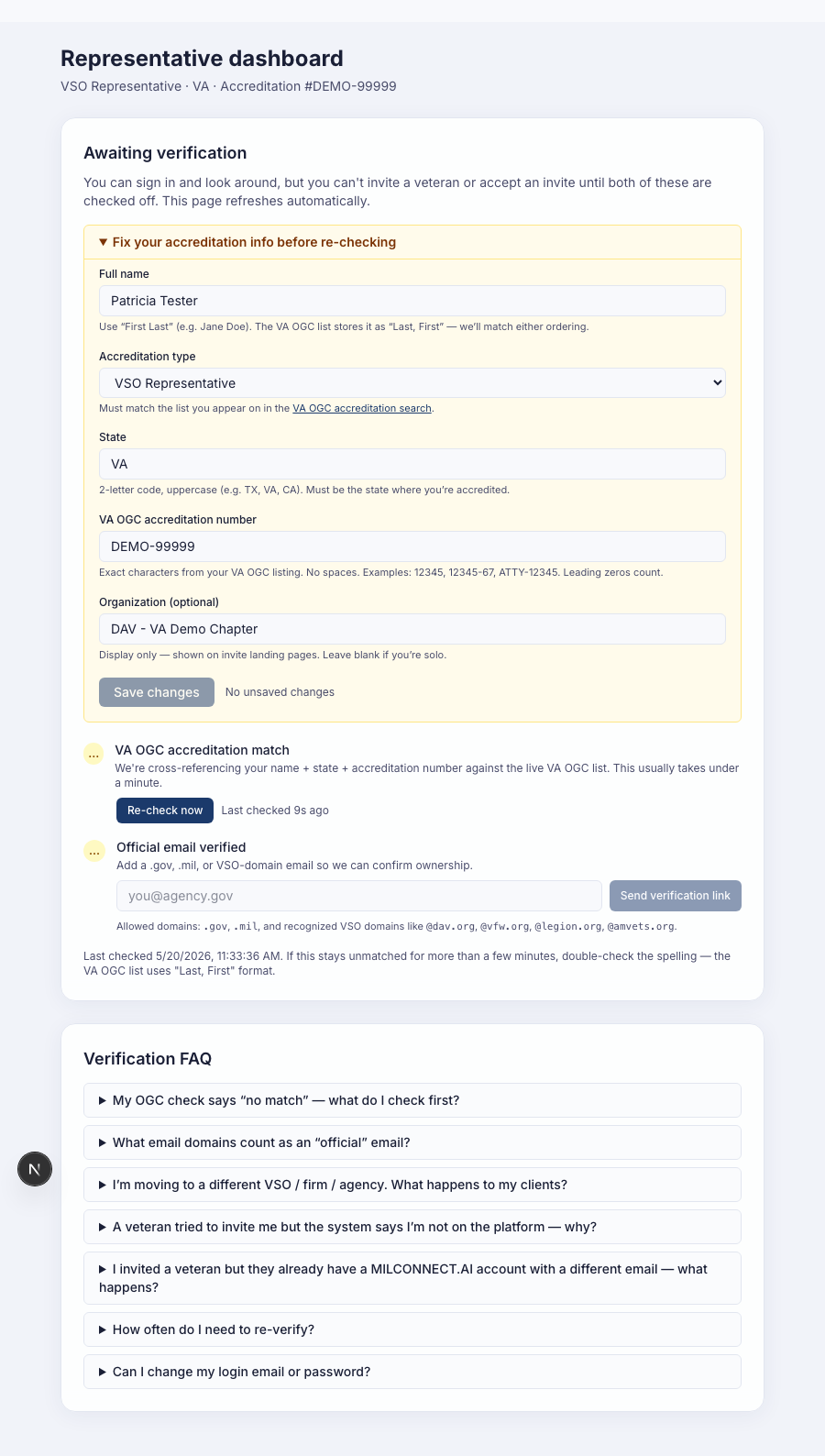
Here's the pending dashboard for a demo rep we'll call Patricia Tester. The amber panel at the top is where you fix any typo in your name, accreditation type, state, or accreditation number before hitting Re-check now. Below it, the OGC checklist row and the official-email row tell you which piece is still missing.
4.2 Fixing a no-match without re-signing up
If the OGC match fails — name mismatch, wrong state, typo in your accreditation number — you do not need to delete your account and start over. From the same amber panel above:
- Edit the field(s) that need fixing. Format hints under each field show exactly what the OGC registry expects.
- Click Save changes. The page confirms “Saved. Your account is back to pending — click ‘Re-check now’ below to re-run your OGC match.”
- Click Re-check now in the OGC checklist row. The match re-runs in seconds.
We rate-limit this at 5 edits per hour per account — plenty for fixing typos, not enough for someone to grind through the OGC index. The change also invalidates any prior match record, so an active rep who edits their identity fields demotes to pending until the next match lands. Existing veteran connections stay active throughout — only new invites are paused. See section 4.4.
4.3 The official-email magic link
The second checklist row is for your .gov, .mil, or recognized VSO email. Type the address and click Send verification link. The dashboard shows a green “Verification link issued” banner with the URL (and the address it was sent to), so you can see exactly what went to your inbox.
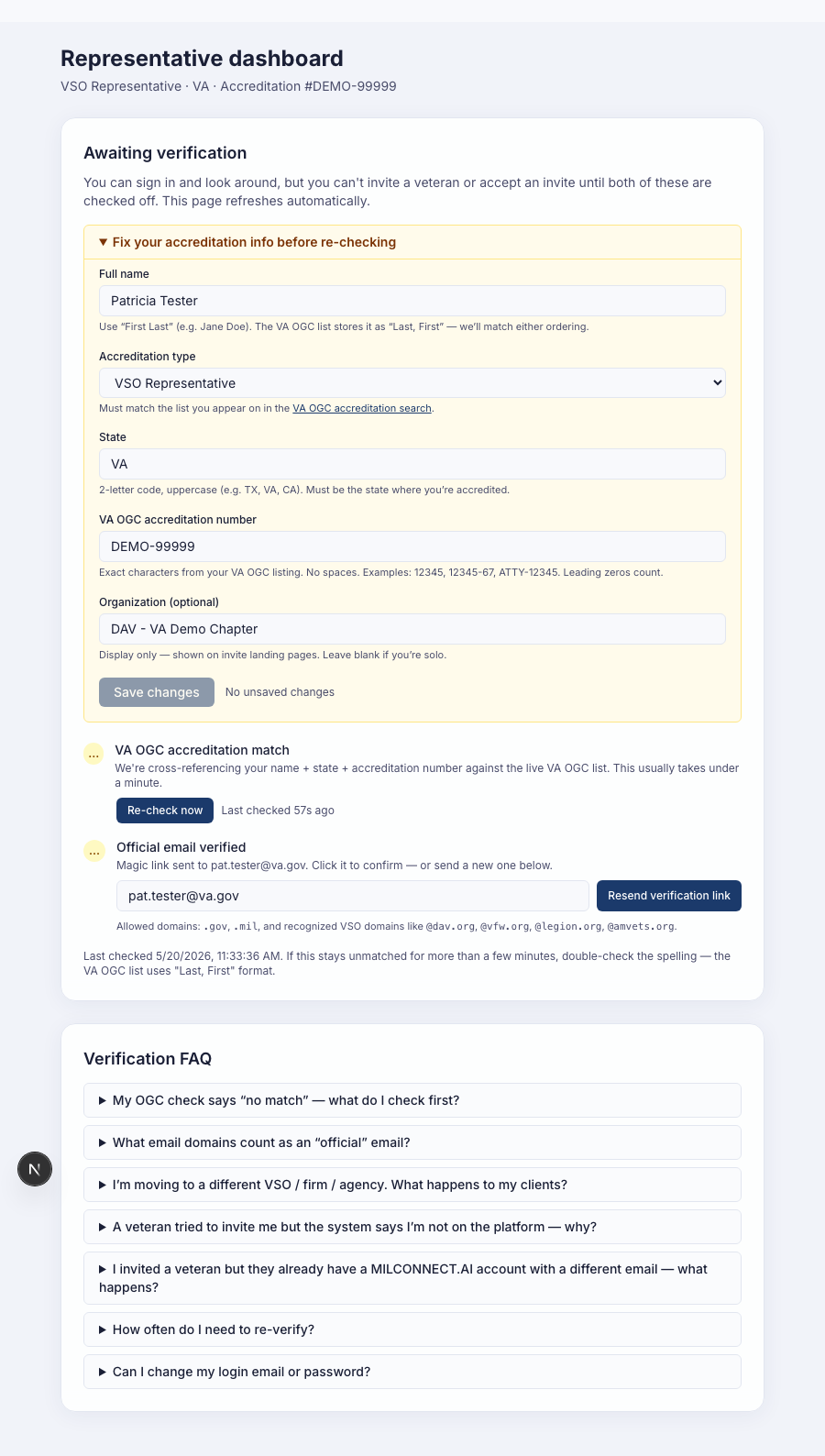
Click the link in the email (or paste the URL into a browser where you're signed in). That single click sets gov_email_verified_at and bumps you forward in the checklist.
4.4 Editing your info after you're active
Moving to a different VSO post? Changing firms? Got a new accreditation number? You can update any of these fields from the same dashboard — your existing veteran connections stay intact. Connections are keyed on your user account, not on your accreditation number, so a move never severs a client relationship.
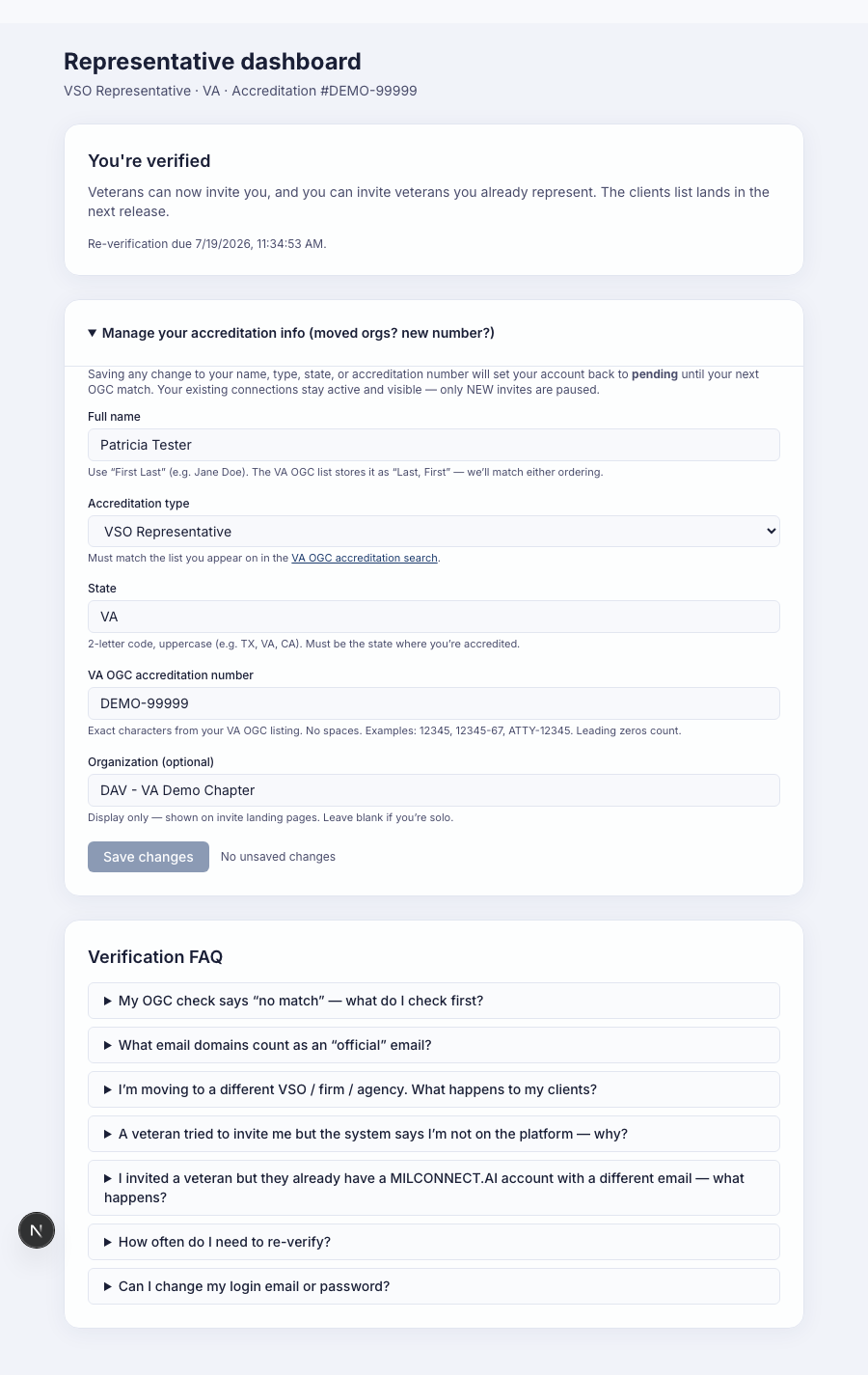
One caveat: any change to name, accreditation type, state, or accreditation number demotes you back to pending until the next OGC match. New invites are paused during that window; clients you already share work with keep full access. Editing organization name alone does not demote you — it's display-only.
5. Getting your first client
There are two ways a connection starts:
- A veteran invites you. They find you in the rep finder (you must be active to appear) and send an invite. You see it on
/connectionswith an Accept / Decline action. - You invite a veteran. Generate a one-time invite link from
/connectionsand send it to your client out-of-band (email, signed letter, etc.). They open the link, sign in or sign up, and confirm the connection.
Either way, both sides have to opt in. There is no automatic attachment based on OGC accreditation or VA records — the veteran must explicitly accept you on this platform.
6. Your /clients dashboard
/clients is the rep-only home base. It shows every active connection as a card with:
- Client name and (if known) service branch / rank.
- Count of documents shared with you in that connection.
- Last-activity timestamp (any audit-log event).
- Unread message badge (red pill, caps at "99+").
- Quick links: Open client, Messages, VA Form 21-22, Activity.
Toggle Include archived to also see connections in their 10-day read-only wind-down. Archived cards are visually dimmed and the deadline is shown inline.
7. /clients/insights — cross-client deadlines
/clients/insights is the rep-only triage screen. It buckets every shared item across every active client by deadline type:
- C&P exam dates — pulled from documents tagged as exam letters.
- Evidence requests — VA-issued 5103 notices and similar.
- Appeal deadlines — SOC / SSOC / BVA timers.
- Pending document requests — items you've asked the client to upload.
Items are color-coded by urgency (overdue, < 7 days, < 30 days, future). Click any row to jump straight into that client's connection. This view never leaks PII between clients — you're looking at metadata from connections you're already authorized for.
8. Inside a single client
Open a client from /clients to land on the per-client workspace. Four panels:
8.1 Shared documents
Files the veteran has toggled into this connection's shared folder, plus anything you've uploaded into the same folder. You can read, download, and add new files. You cannot see anything in the veteran's Record Keeper that isn't in this folder — that isolation is structural, not just UI.
8.2 Messages
Direct, in-platform thread with your client. Polled every 10 seconds while the tab is focused; pauses when the tab is backgrounded. 5,000-character limit. Read receipts auto-fire when the recipient opens the thread — the unread badge clears the same way.
8.3 Rep-private notes
Notes scoped to you, on this client. The veteran never sees them. A different rep on the same connection (rare, but possible during a handoff) also never sees them — notes don't cross authors.
8.4 Activity
The connection's append-only audit log. Every share, unshare, upload, download, view, message, and state change is recorded with timestamp + actor. Use it to reconstruct what happened without trusting either side's memory.
9. VA Form 21-22 / 21-22a helper
From any active connection, open VA Form 21-22 to generate a printable appointment form pre-filled with your client's identifying information and your accreditation details.
- VSO reps get Form 21-22. Attorneys and claim agents get Form 21-22a. The form number is picked automatically from your account type.
- Empty fields render as (blank — fill by hand) so the client can complete anything we don't have on file.
- Click Print to send to your printer or save as PDF. The on-screen chrome (buttons, banners) hides on print; only the form prints.
- If your account is not OGC-verified yet, the form shows a warning banner so the client knows not to submit it until your accreditation status is confirmed.
This is a convenience helper, not an e-file. You still submit the signed form to the VA through the normal channel (eFolder upload, mail, or fax) and you remain the responsible party for accuracy.
10. Audit log, privacy, and PII isolation
10.1 What you can see
For any client you're connected to: only documents in that connection's shared folder, only messages on that thread, only the activity log for that connection. Nothing else in the veteran's account is visible to you.
10.2 What you cannot see
- The veteran's un-shared documents.
- Any other rep's notes on the same client.
- Anything from a different client's connection — even on the same dashboard view.
- The veteran's saved tools, calculator history, or personal preferences.
10.3 What gets logged
Every share, unshare, upload, download, view, message send, read receipt, invite, accept, revoke request, and revoke confirm. Entries are append-only — we cannot edit or delete them, and neither can you. Open /connections/[id]/activity (or the Activity link on any client card) to read the feed.
11. Ending a collaboration
Either side can end a connection. It's a deliberate two-step to prevent accidents:
- Request revoke. The connection moves to pending revoke. The other side is notified immediately.
- Confirm. The initiator types
ENDto finalize. The connection is archived: write access goes away immediately, read-only access remains for 10 days, then all access is purged.
The audit log is not purged — it persists for compliance. The shared folder, messages, and notes all become inaccessible after the 10-day window.
12. Notifications
High-volume events (share, unshare, upload, new message) are batched into one email every five minutes per recipient so we don't flood your inbox. State changes that need immediate attention — invite received, invite accepted, revoke request, revoke confirm — bypass the batch and send immediately.
You can always reconstruct the full sequence from the per-connection activity log, regardless of which emails actually landed.
13. Quick reference
| Where | What you do there |
|---|---|
| /signup/representative | Create your rep account. Requires VA OGC accreditation number + state. |
| /dashboard/representative | Verification checklist (OGC + .gov email). Lands here right after signup. |
| /clients | All active clients. Cards with shared-doc counts, unread badges, last-activity stamps. |
| /clients/insights | Cross-client deadline triage — C&P exams, evidence requests, appeals, doc requests. |
| /connections | All connections (active & archived). Send/accept invites, open Messages / Activity / VA Form 21-22. |
| /connections/[id]/activity | Append-only audit feed for one connection. Never editable, never deletable. |
| /connections/[id]/form-21-22 | Printable, pre-filled VA Form 21-22 (VSO) or 21-22a (attorney / claim agent). |
14. Common questions
How long does OGC verification take?
Usually under a minute. We scrape the VA OGC public accreditation registry on signup, then re-check periodically. If the registry is slow, your status stays 'pending' — you can still browse the dashboard but you won't appear in the veteran-facing rep finder and you can't accept invites until both the OGC match and the .gov / .mil / VSO-domain email confirmation land.
What if my name on OGC doesn't match what I typed at signup?
Most mismatches are typos, punctuation, or middle-name differences. You do not need to re-sign-up. Open the amber 'Fix your accreditation info' panel on your dashboard, edit the field that's wrong, click Save changes, then click Re-check now — the OGC match re-runs in seconds. Format hints under each field show exactly what the registry expects (e.g. 'First Last', 2-letter state code, exact accreditation number with no spaces). If your name truly differs on OGC, update it at va.gov first; the dashboard re-check picks up the corrected record on the next pass.
I moved to a different VSO / firm. Do I lose my clients?
No. Connections are keyed on your user account, not on your accreditation number or organization, so editing any of those fields keeps every existing client connection intact. From the dashboard, expand 'Manage your accreditation info', update the relevant fields, and click Save changes. Any identity-field change (name, type, state, accreditation number) sets you back to pending until the next OGC match completes — your active clients keep full access during that window, but you can't accept brand-new invites until you re-verify. Editing the org-name field alone is display-only and doesn't demote you.
Do I need a .gov or .mil email?
Not to sign up — but you can't reach 'active' status without confirming an official email. Acceptable domains: .gov, .mil, or a recognized VSO domain (dav.org, vfw.org, legion.org, amvets.org). Type the address into the dashboard's email row and click Send verification link. We email you a magic link and also surface the URL on the dashboard (green 'Verification link issued' banner) so you can confirm what was sent. Clicking it sets gov_email_verified_at.
A veteran tried to invite me at an email I didn't sign up with. What happens?
Nothing automatic. The veteran-side invite form looks you up by accreditation number + state, not by email — so they can invite you regardless of which login email you used. Once you accept on your side (using your existing login), the connection forms normally. Inviting at a typo'd email won't create a duplicate account on your behalf; only you can create your rep account.
I invited a veteran whose MILCONNECT.AI account uses a different email. What happens?
Same answer in reverse. The invite link is signed and one-time-use — the veteran clicks it while signed into whatever email they actually use on MILCONNECT.AI, and the connection is created against their existing account. No new account is created, and emails are never reconciled or merged behind the scenes. If they don't have an account yet, the link prompts them to create one with whichever email they prefer.
How often do I need to re-verify?
Every 60 days. We re-run the OGC match on a rolling cron, and your dashboard shows the next due date. If a re-check fails (e.g. you let your accreditation lapse), you drop to pending and the same 'Fix your accreditation info' panel lets you correct anything that drifted.
Can I change my login email or password?
Login-email changes go through support — email help@milconnect.ai from the address on file. Password resets are self-serve from the sign-in screen. The accreditation panel only covers fields that drive OGC verification (name, type, state, number, organization).
Can I see a client's full Record Keeper?
No. By design, you only see documents the veteran has explicitly toggled into your connection's shared folder. Everything outside that folder is structurally invisible to you. Un-toggling a document removes your access immediately.
Can a different rep see my notes on a shared client?
No. Notes are scoped to the rep who wrote them. Even if two reps end up on the same connection (rare but possible during a handoff window), notes do not cross over.
What happens to my access if the veteran ends the collaboration?
Ending is a two-step wind-down. Step 1 marks the connection 'pending revoke'. Step 2 (the veteran types END) archives it. You lose write access immediately and keep read-only access for 10 days so paperwork in flight can wrap up. After 10 days, all access is purged. The audit log persists.
Is this a substitute for VA's eFolder / VBMS / SEP?
No. MILCONNECT.AI is a client-collaboration surface — invites, shared documents, messaging, and a generated VA Form 21-22 you can print and submit. It is not a filing portal. You still submit appointment forms and claims through the VA's official systems.
15. Glossary
| Term | Meaning |
|---|---|
| OGC | VA Office of General Counsel — the authority that accredits reps; we cross-check signups against their public registry |
| Accreditation Number | Unique ID the VA assigns to each accredited rep; required at /signup/representative |
| Connection | An established veteran ↔ rep relationship. Has its own shared folder, messages thread, and audit log |
| Shared Folder | The per-connection bucket of documents the veteran has explicitly opted into sharing with you |
| Audit Log | Per-connection, append-only history of every share, view, download, message, and state change. Never editable, never deletable |
| VA Form 21-22 | Appointment of a Veterans Service Organization as Claimant's Representative |
| VA Form 21-22a | Appointment of Individual as Claimant's Representative (attorneys, claim agents) |
| Archived window | 10-day read-only period after a connection is ended; lets you wrap up paperwork before access is purged |
Ready to start?
Create your rep account — OGC verification usually finishes inside a minute. There's no charge to sign up.
Create Representative Account